Monday, June 11, 2018

How to Fix "Safari cannot Open the Page because the Address Is Invalid" on iPhone/iPad?

How to Fix "Safari cannot Open the Page because the Address Is Invalid" on iPhone/iPad?

For many iPhone users, the first solution that comes into their mind when their Safari fails to load a page stating that the web address is not valid is to delete Safari browser and then reinstall it later. Note that this will not work. Safari is the default browser on iPhone and hence it cannot be deleted. To actually fix the error, follow the steps below:
Step #1: Force restart your iPhone.
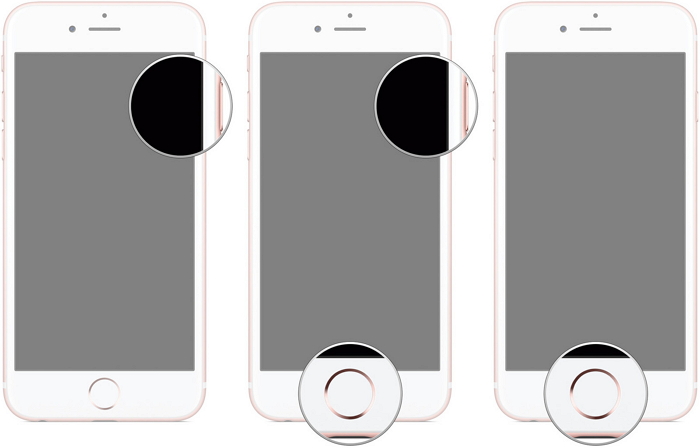
To do this, you will need to hold down the “Wake/Sleep” button together with the “Home” button. Keep holding both buttons for about 10 to 15 seconds. You should let go when the Apple logo appears on your screen.
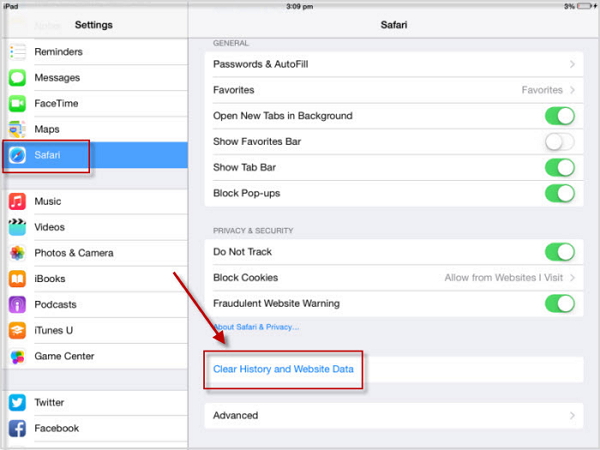
Step #2: After the device restarts, locate Safari in Settings and tap on it.
Step #3: Locate Cookies and Data and tap on it. Clear the Cookies and Data.
Step #4: Restart your iPhone. Do you like this story?
Sponsor Ads:
Gihosoft iPhone Data Recovery is a professional iPhone Data Recovery software to get back all your lost text message, photo, video, call history, note, contact and more from iPhone/iPad/iPod Touch. It offers a full solution to recover your lost data in different tough situations. Besides recovering data directly from iPhone, iPad and iPod touch, it also allows you to recover data from iCloud and iTunes backup files.
clear safari history website data ipad
To do this, hold down the “Wake/Sleep” button until a red slider shows. Slide the red slider to turn the device off. After the device is completely off, hold down the “Wake/Sleep” button for a second time until you see an Apple logo.


How to Use iPhone Health App to Count Your Steps?

How to Use iPhone Health App to Count Your Steps?

Set up your Health app

Before you can use your Health application, it is important that you add your information. To do this, follow the steps below:
Step 1: Open the Health App.
Step 2: Click Health Data tab.
Step 3: Tap account icon on the top-right of the screen.
Step 4: Add Your information.

Adding data from other applications

Checking if any apps work with Health:

Step 1: Open Health.
Step 2: Click Sources tab.
Step 3: Tap any app.
Step 4: Turn the categories you wish to track on.

Adding new applications:

Step 1: Open Health.
Step 2: Click Health Data tab.
Step 3: Tap a specific category. For example, Mindfulness.
Step 4: Download a recommended app for tracking the selected category.
Step 5: Install the application. Set the app up.
Step 6: Open your Health application, click the Sources tab, and then tap the downloaded application. Turn the categories you wish to track on.
Do you like this story?
Sponsor Ads:
Gihosoft iPhone Data Recovery is a professional iPhone Data Recovery software to get back all your lost text message, photo, video, call history, note, contact and more from iPhone/iPad/iPod Touch. It offers a full solution to recover your lost data in different tough situations. Besides recovering data directly from iPhone, iPad and iPod touch, it also allows you to recover data from iCloud and iTunes backup files.

Saturday, June 9, 2018

All You Need to Know About DFU Mode

All You Need to Know About DFU Mode

1. What's iPhone DFU Mode

The DFU Mode allows all devices such as iPhone/iPad/iPod touch to be restored from any state. DFU refers to Device Firmware Update. Compared to ​recovery mode, it's more comprehensive and usually used to solve more difficult and serious problems.​​​​
iphone DFU mode

2. When to Use iPhone DFU Mode

For most problems, you don't need to put your iPhone, iPod touch, or iPad into DFU mode. Recovery mode may have already fixed the problem for you. Here are some cases you will need to use DFU mode:
  • Jailbreak iPhone or un-jailbreak it. iPhone comes with some restrictions on how you can use your iPhone, for example what kind of apps you can install on your iPhone. People jailbreak iPhone in order to gain more control of it.
  • Downgrade iOS. Sometimes updating to the newest version of iOS is not the best choice for you. For example, iOS 11 was complained by many people for its obvious bugs when it was released and many people were looking for a way to downgrade it to the previous version.
  • The problems that cannot be fixed by recovery mode.
It is necessary to know that using DFU mode to downgrade firmware to the unsigned version or jailbreak your device might damage it and violate its warranty. If DFU restore failed, you can check some solutions to fix the problem.Sponsor Ads:
Gihosoft iPhone Data Recovery is a professional iPhone Data Recovery software to get back all your lost text message, photo, video, call history, note, contact and more from iPhone/iPad/iPod Touch. It offers a full solution to recover your lost data in different tough situations. Besides recovering data directly from iPhone, iPad and iPod touch, it also allows you to recover data from iCloud and iTunes backup files. What's more, it supports Smart Recovery modes that can find your iPhone data quickly.

3. How to Enter DFU Mode

How to Put iPhone 8/8 Plus & iPhone X into DFU Mode
  1. Connect the device to your computer
  2. Quickly press the Volume Up button first and then the Volume Down button. Press and hold the Side button. Don't release it when the screen turns black.  
  3. Press and hold the Volume Down button together with the Side button for 5 seconds.
  4. After 5 seconds, release the Side button but keep holding the Volume Down button for at least 5 seconds. 
How to Put iPhone 7/7 Plus into DFU Mode
  1. Press and hold Side button and Volume Down button simultaneously for 8-10 seconds.
  2. Release the Side button but continue holding the Volume Down button for about 5 seconds.
How to Put iPhone 6/6 Plus & Earlier Models into DFU Mode
  1. Press and hold Side button and Home button simultaneously for 8-10 seconds.
  2. Release the Side button but continue holding the Home button for about 5 seconds.
enter iPhone 6 DFU mode
If you iPhone has entered DFU mode, your device screen will be black and it will be detected by iTunes as a device in recovery mode.
iphone in DFU mode detected by iTunes

4. How to Exit DFU Mode

To exit DFU Mode, you can also simply force restart your device. 

iPhone 11 Hands-On Roundup

Alongside the iPhone 11 Pro series , Apple also announced the iPhone 11. While the phone might not carry the same premium design or the t...